
For access to out-of-band management * for your servers, an OpenVPN connection is required. If you have servers which can only be accessed through our VPN, then the OpenVPN profile can be downloaded through the following Page: -
Note: Make sure you have subscribed for IPMI or KVM. Otherwise, This page will not show the "Downloads" option at all. Only for KVM / IPMI Subscribers.
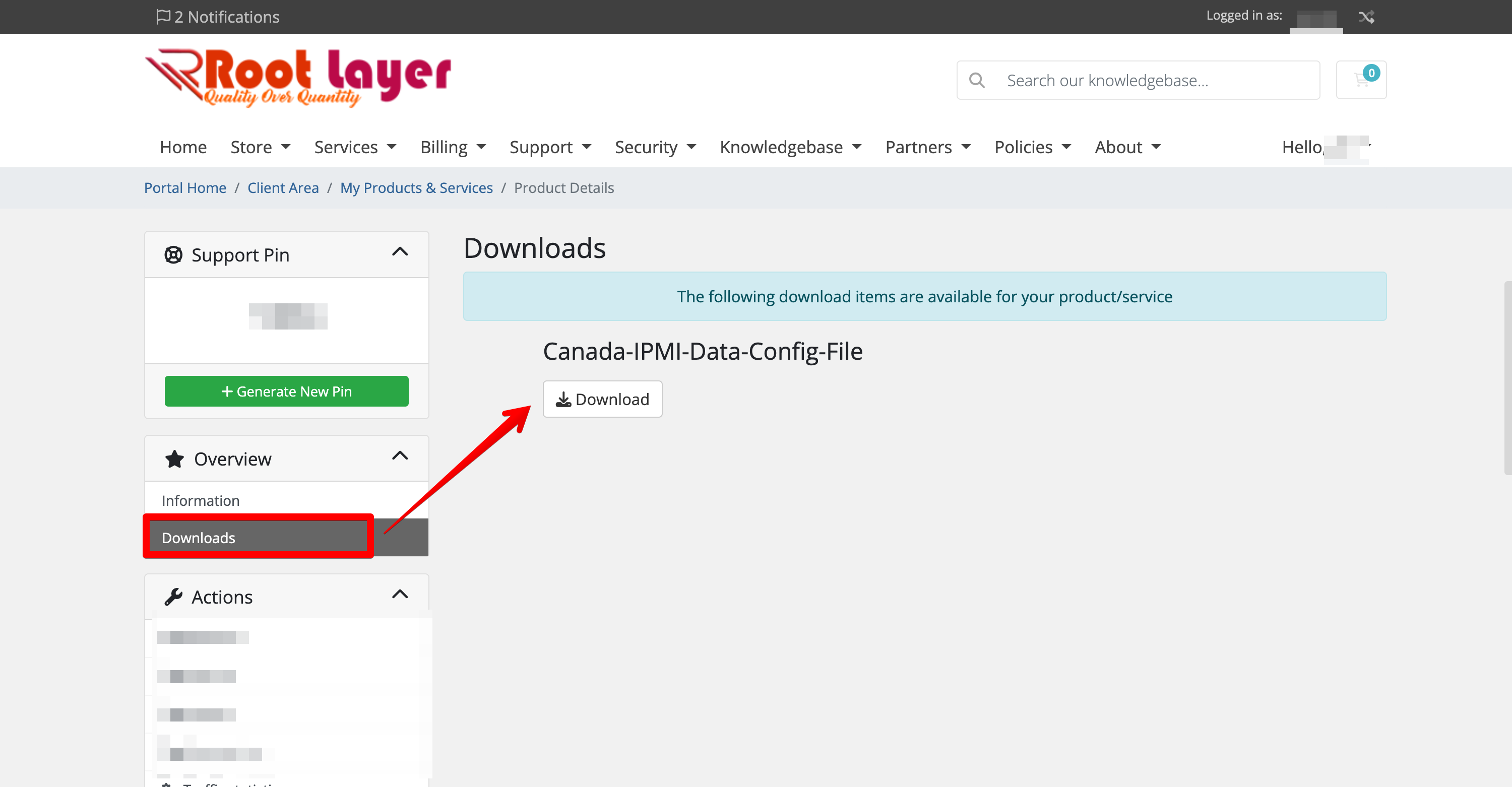
Once you’ve downloaded the profile (.ovpn file), you’ll need an OpenVPN client which will use the downloaded profile to connect to the RootLayer remote access VPN. For your convenience we explain how to install our recommended OpenVPN clients hereafter:
Installing and running OpenVPN client on Windows:
1. Use the windows download link on https://openvpn.net/community-downloads/
2. In explorer, go to “C:Program files\Openvpn\bin” and right-click openvpn.exe and choose ‘Properties’. On the ‘compatibility’ tab, under the ‘Privilege level’ section, set “Run this program as an administrator”.
3. Once you’ve installed the OpenVPN client, you can right-click on the downloaded profile in Mozilla Firefox / Google Chrome or Windows Explorer, and choose “Start OpenVPN on this config file”
Once you’re done using the VPN, you can simply close the window that opened in step 2.
Installing and running OpenVPN client on MacOS
1. Use the download link on https://tunnelblick.net/downloads.html
2. Use Tunnelblick’s “Quick Start guide” to import the profile that you’ve downloaded from RootLayer.net Server profile page.
Note: You will be provided with the IPMI / KVM login data if you subscribed. If you have lost that, you can always reach us to get KVM / IPMI login data.