
As a Windows VPS / Linux users (Or any other OS), You should know that when you are disconnected from the VPS (Virtual Private Server) because of any incorrect network settings or during the server startup, you can still use & login into the server via the VPS Console (Local access to your VPS) feature we offer via the VPS panel.
Example: If you are connected to a VPN and suddenly lost the RDP/SSH connection, you can just login into the server via the VPS console option, so you can login and correct your server settings or just keep accessing the server without any interruption.
When you change MAC address or connect to a VPN or Disconnect the network adapter for something, the RDP/SSH can get disconnected.
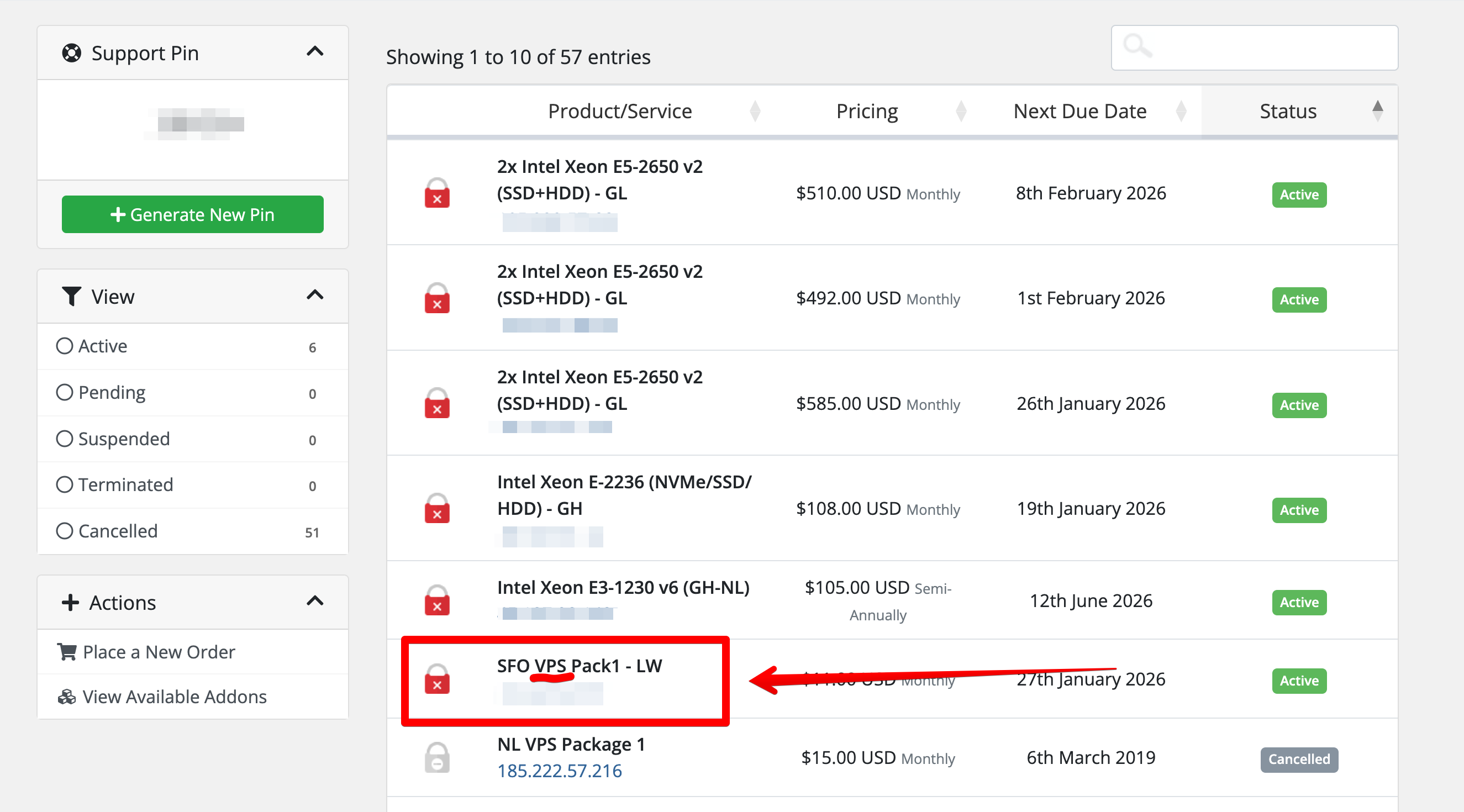
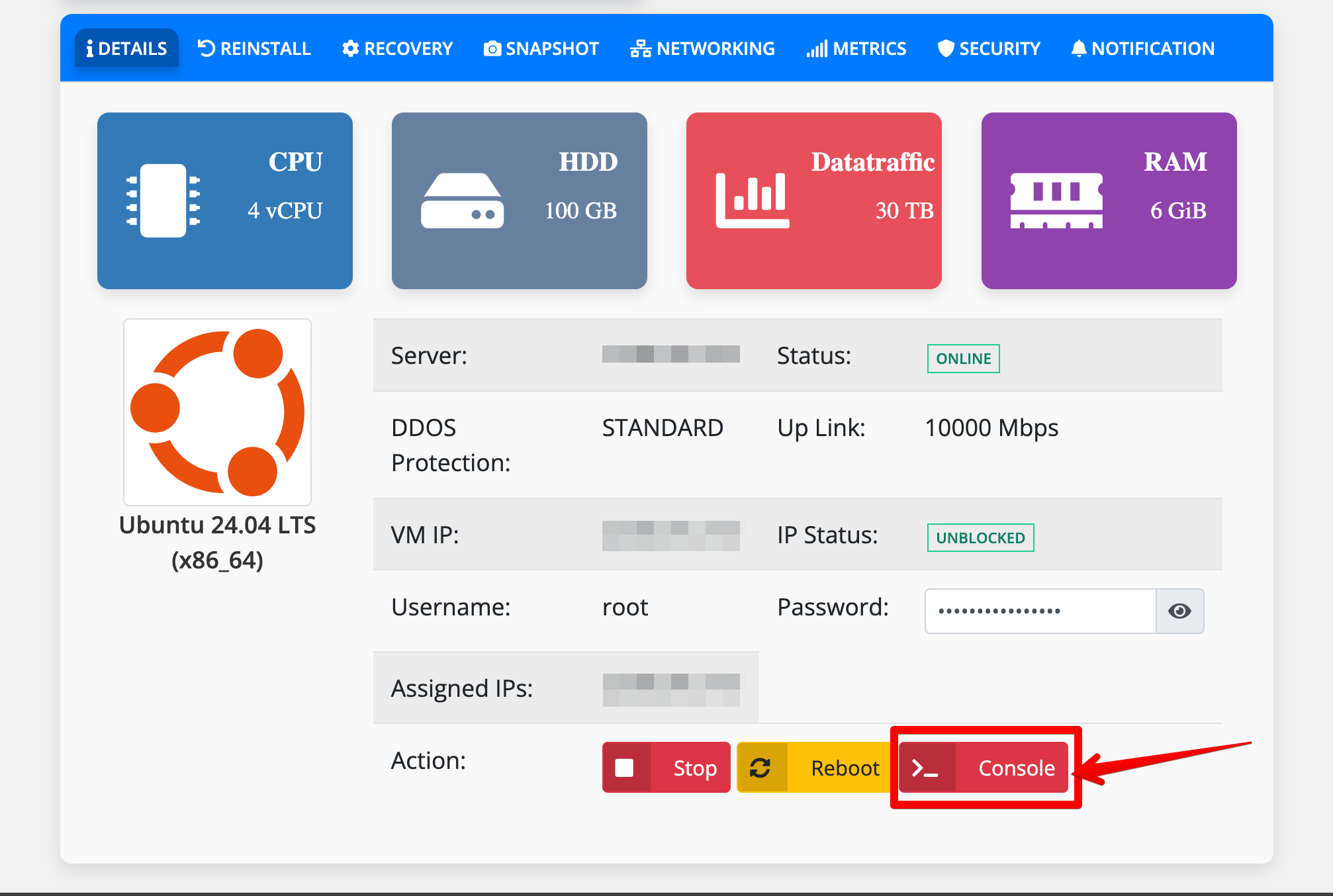
Go to Clients area Services > The VPS Server IP > You can access the Console there as below:-
Select 'Launch The Console button'
Press Control + ALT + Delete button, so you can write the server password and login.
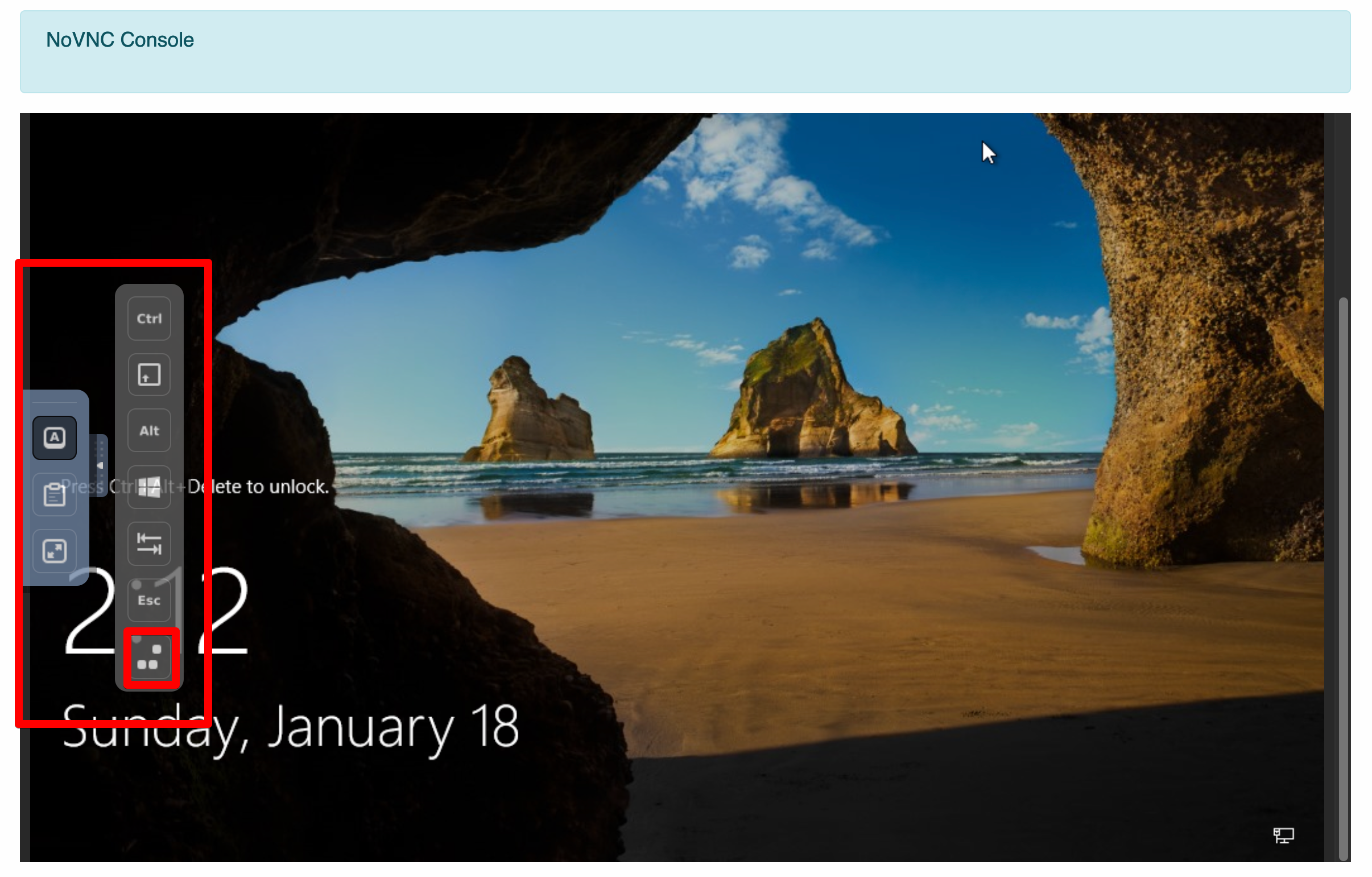
Nope: Shown as Windows VPS but both will work whether it is a Windows or Linux OS.
Need more assistance? > Contact RootLayer.net
Thanks to all.