
If you face "An Internal Error has occurred" error while trying to access Windows VPS over RDP connection means you have to make some changes inside the server to make it work.
However, Due to this error, you are unable to login inside the server via RDP access.
Therefore, you have to access the server locally via VPS console option. Check below article and know how you can access the VPS console.
How to use Console From VPS panel ? (Local access to your VPS)
Now, after following the above article, you are logged in into the Windows Server via VPS console option.
Let's start with the next tasks, and you have to perform it within the server you are accessing via the VPS console. (Not on your Home PC/MAC)
> Open Run
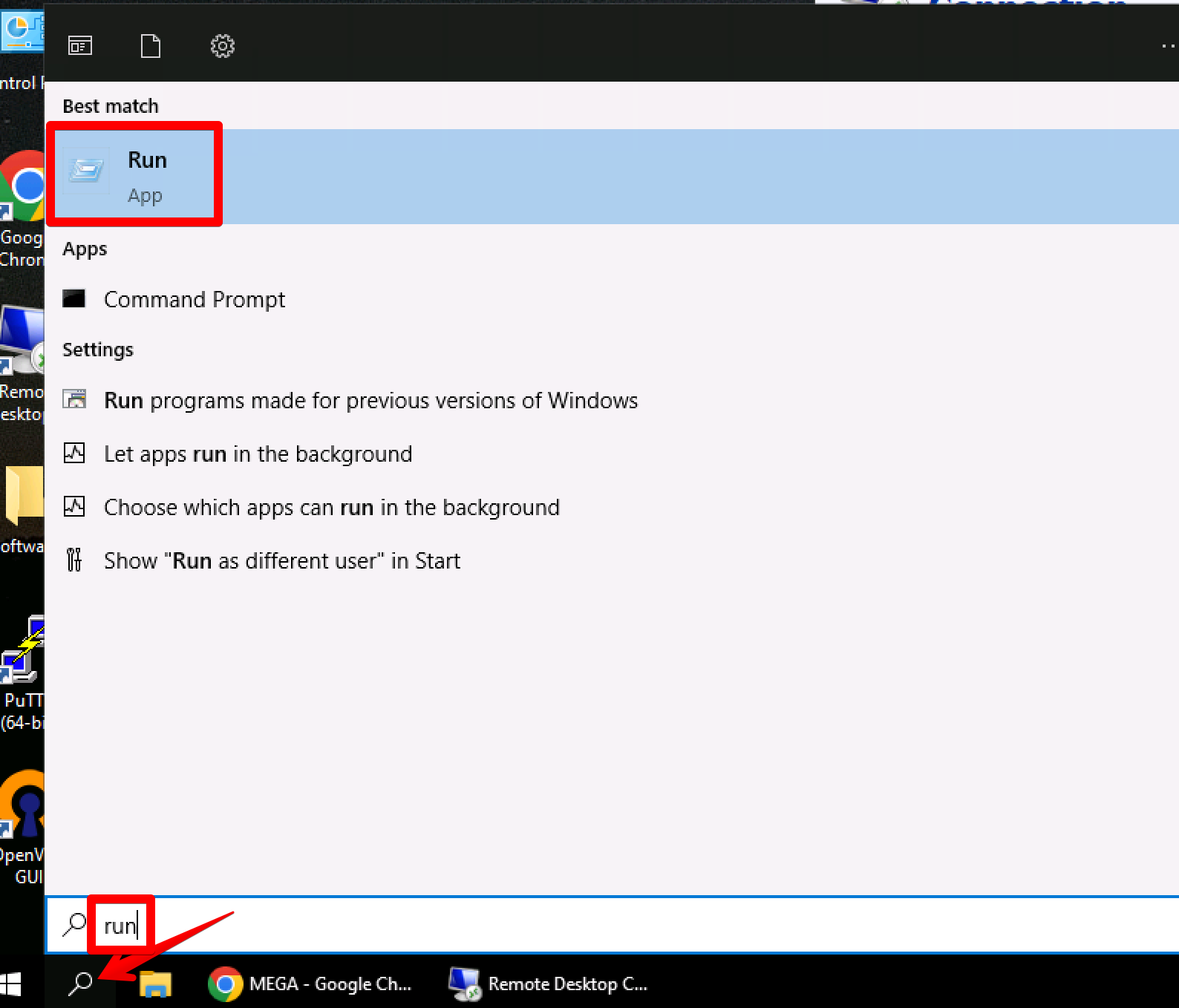
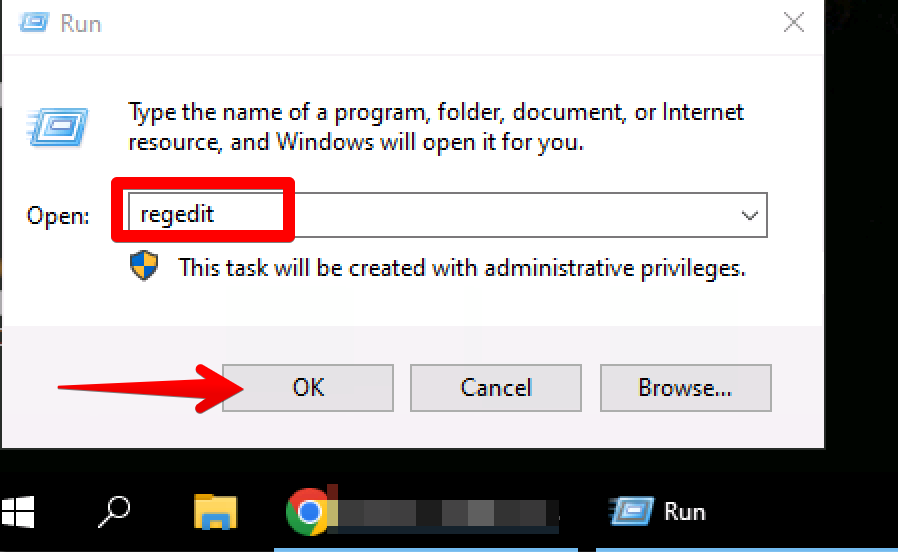
Write regedit on the search bar and press ok.
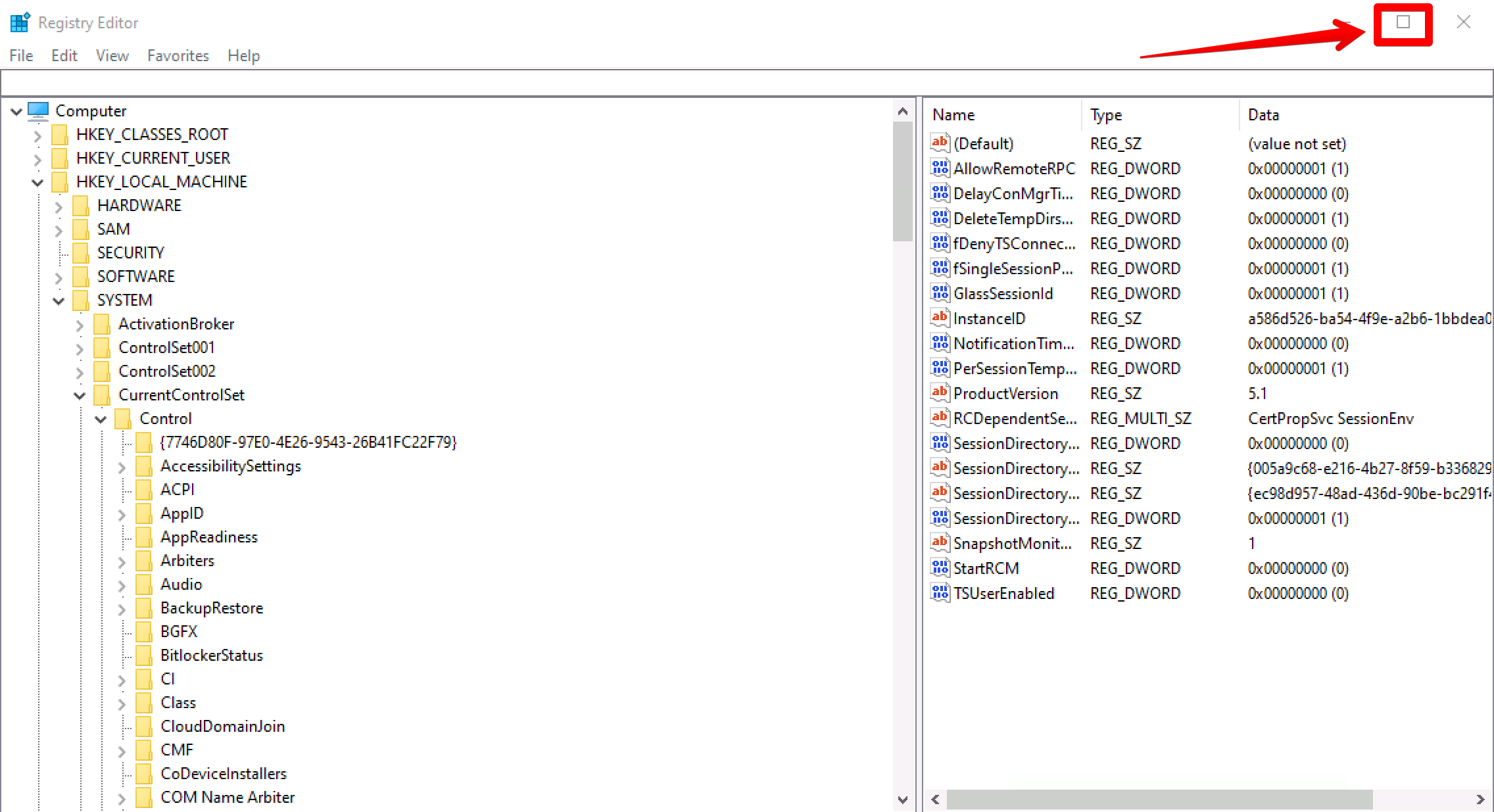
Now, make the registry editor full screen for your viewing experience.
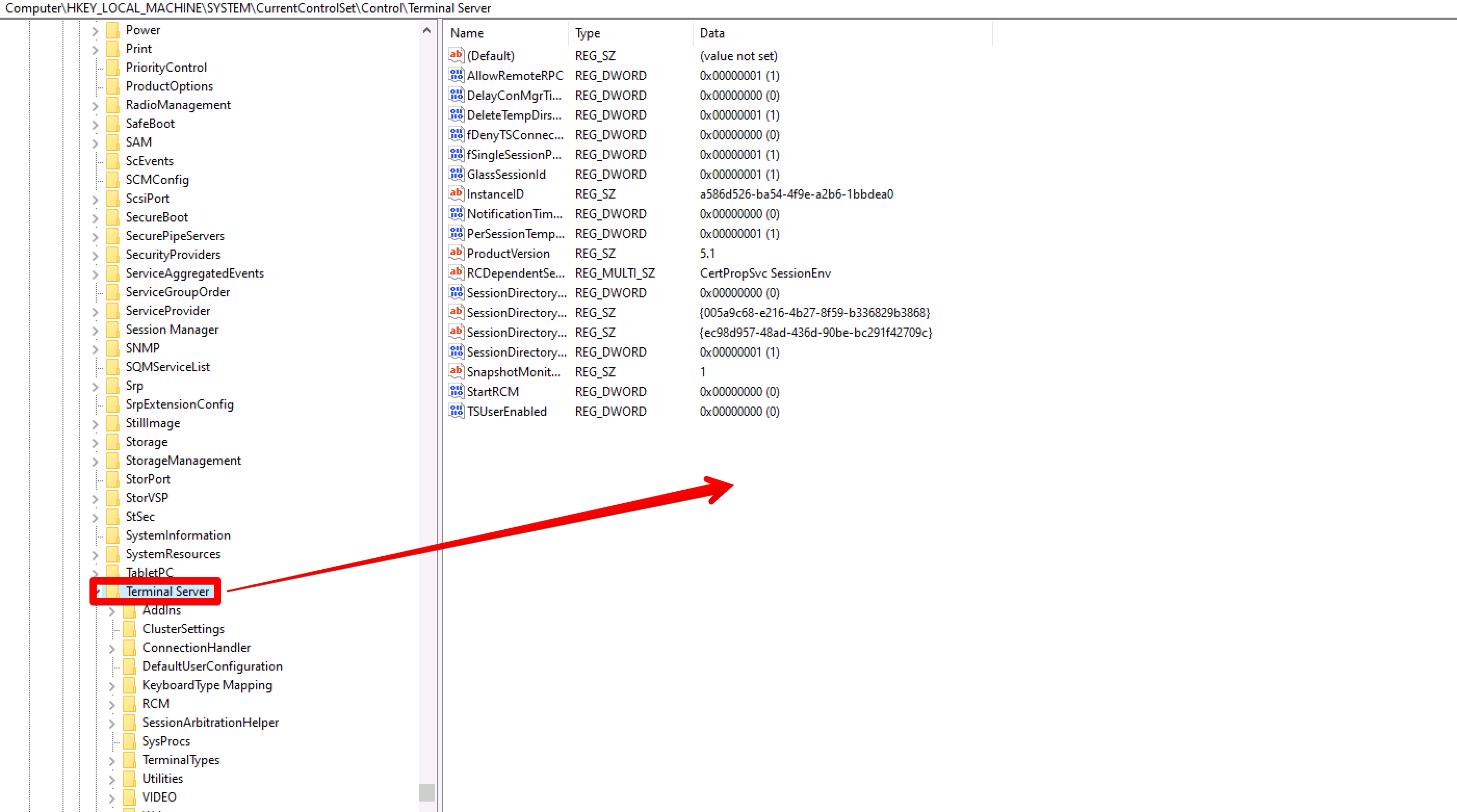
Copy-paste this red marked path into the search tab & press enter: Computer\HKEY_LOCAL_MACHINE\SYSTEM\CurrentControlSet\Control\Terminal Server
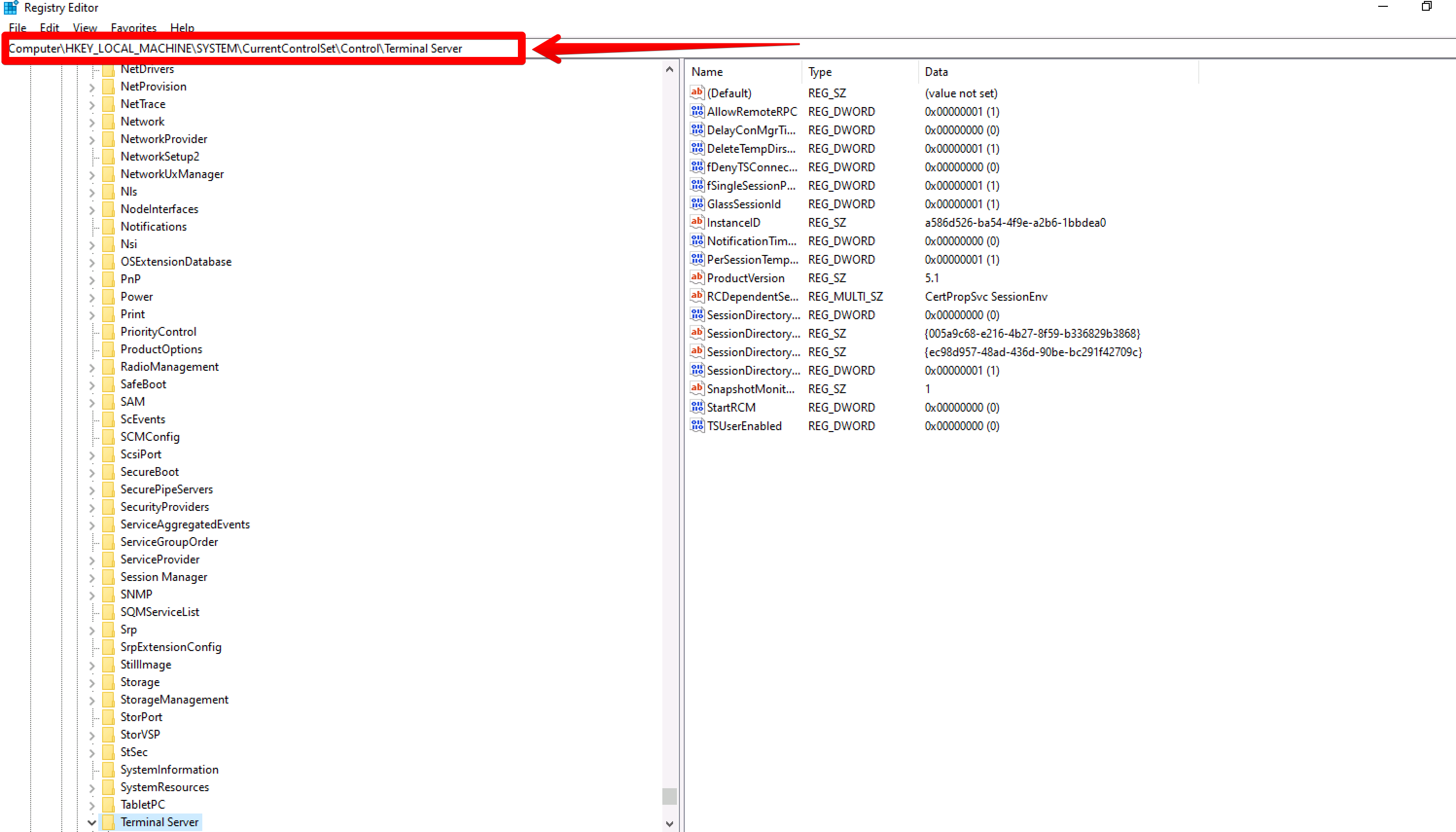
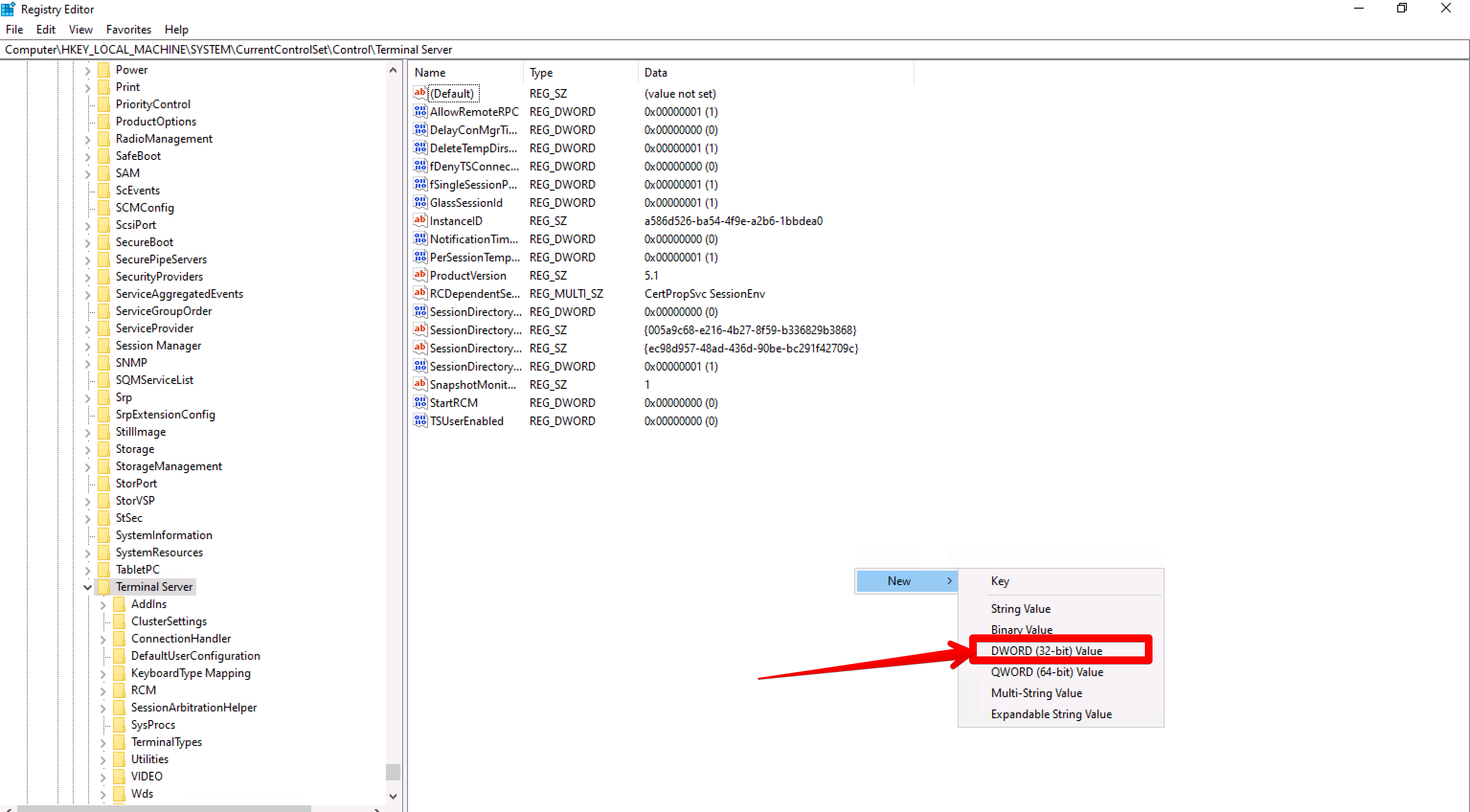
On the Terminal Server folder, we will create a rule +value
Right click and select the red marked value.
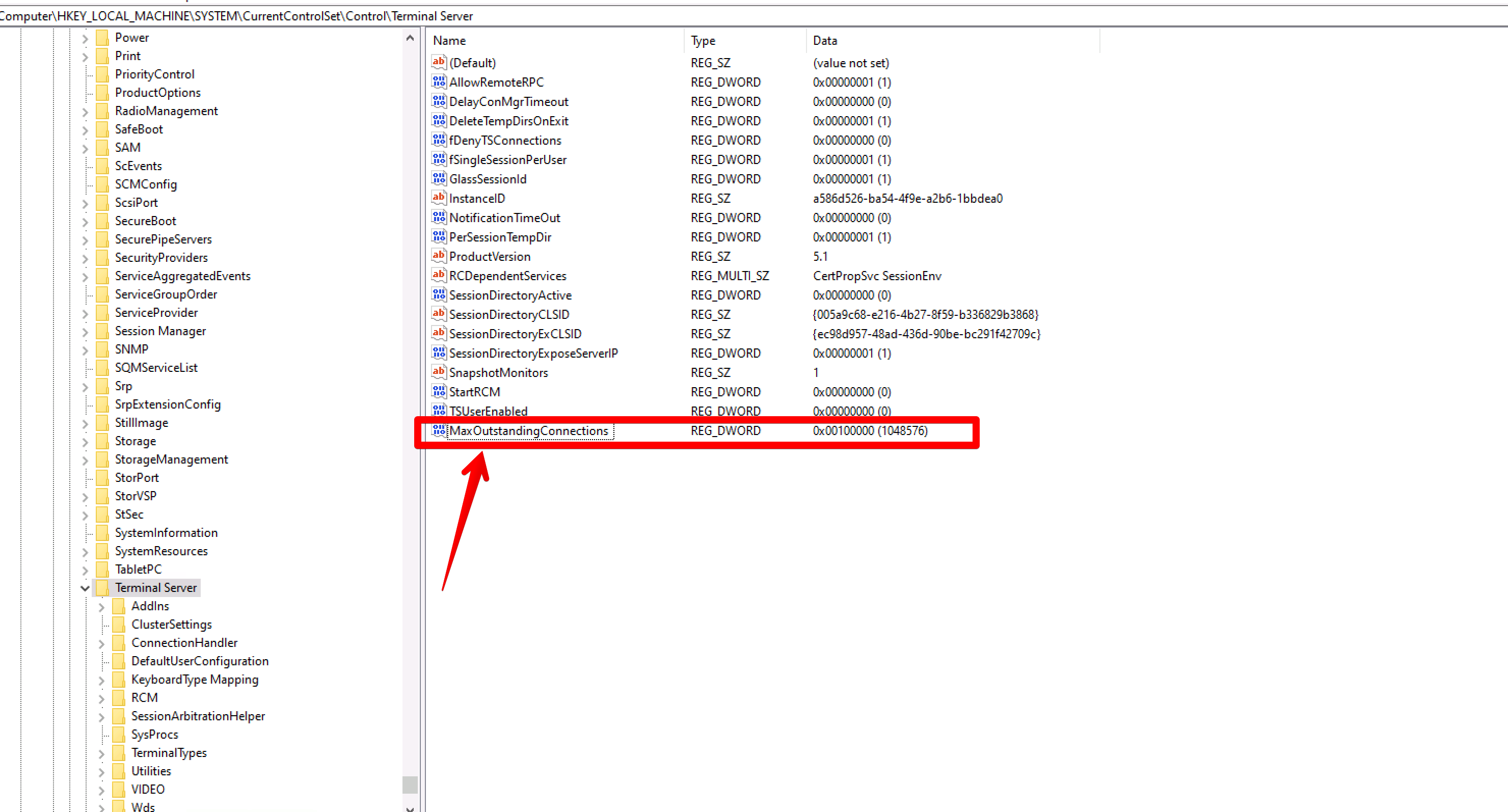
Give it MaxOutstandingConnections name and open
Enter a Value data of 1000000 for example. Exact showing number is preferred. Ok + Save
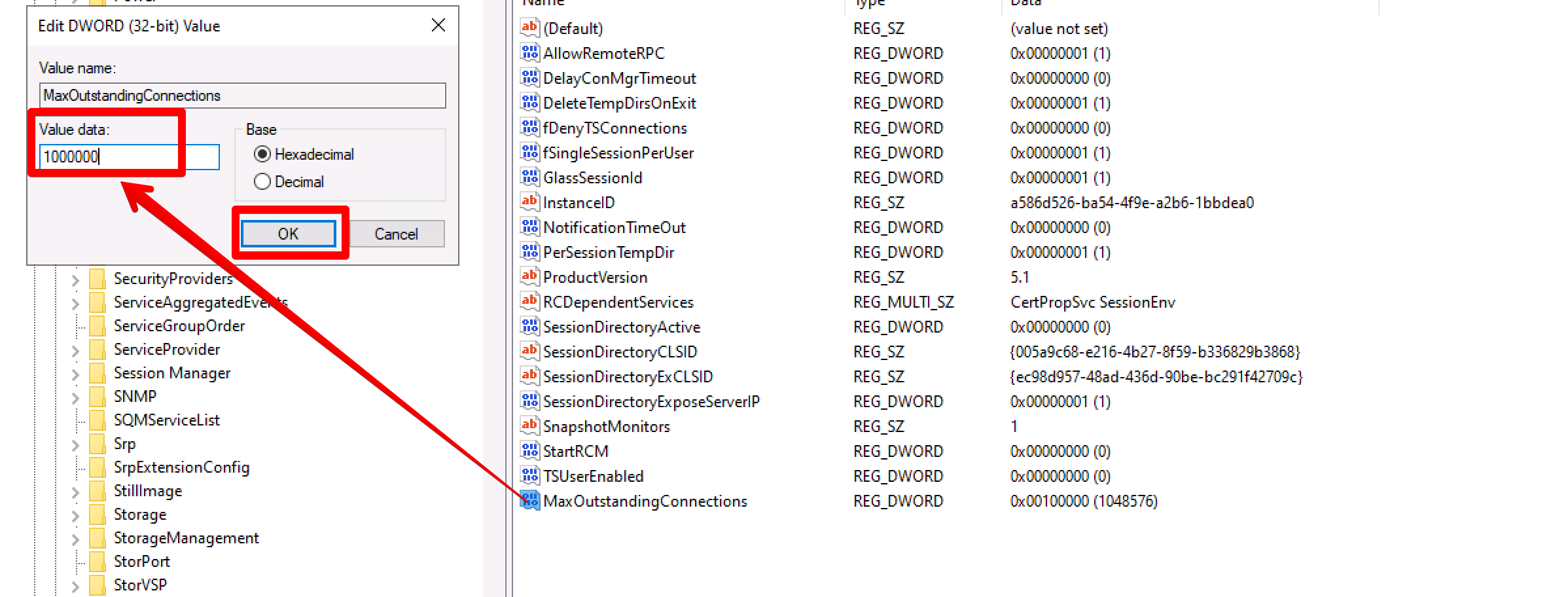
That is it and now try to login into the server via the RDP access and it should work now.
If you are an existing customer of RootLayer.net, Please reach us for further assistance.