
This article should work with the following Ubuntu versions, at least -
- Ubuntu 16.04
- Ubuntu 18.04
- Ubuntu 20.04
- Ubuntu 22.04
- Ubuntu 24.04
If you have lost the root password of your server, and you cannot access the server as root, then this article will help you resolve this issue.
You have to have KVM/IPMI access of the server you want to reset the password for. See if you already do not have IPMI/KVM of the server, you can claim from RootLayer.net or just knock us to get the server password reset.
Here are the steps: -
- Access the server via the console/IPMI/KVM
- Restart the server from Server Panel given by RootLayer.net or via IPMI/KVM
- Before starting the OS, boot parameters will change in the GRUB boot menu
- The Operating system will be loaded in the single-user mode
- Set the new root password without the old password requested
Let's discuss it in details: -
If the server is turned on and loaded, restart it by pressing CTRL + ALT + DEL. If not, turn on the server. After the BIOS menu, before the OS starts, a timer appears. To stop it and access the GRUB boot menu, press any key, preferably ESC.
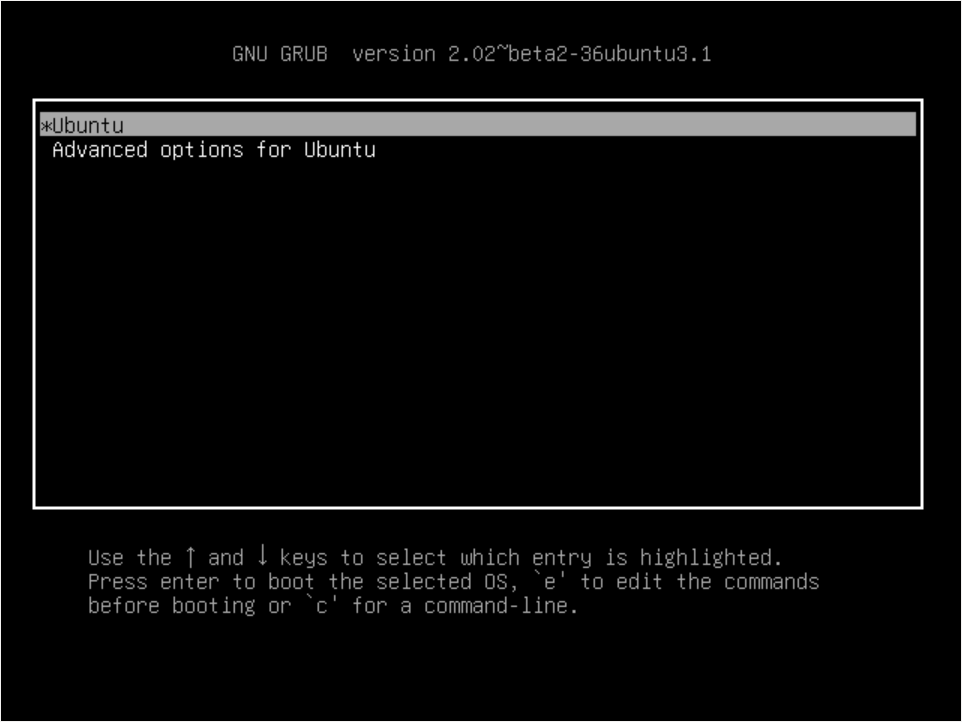
To start the system in a single-user mode, it is necessary to edit the boot line. To do this, use the keys ↓ and ↑to navigate through the menu, select your boot line (often it is "* Ubuntu"), and press the "e" key to access the boot mode editing options
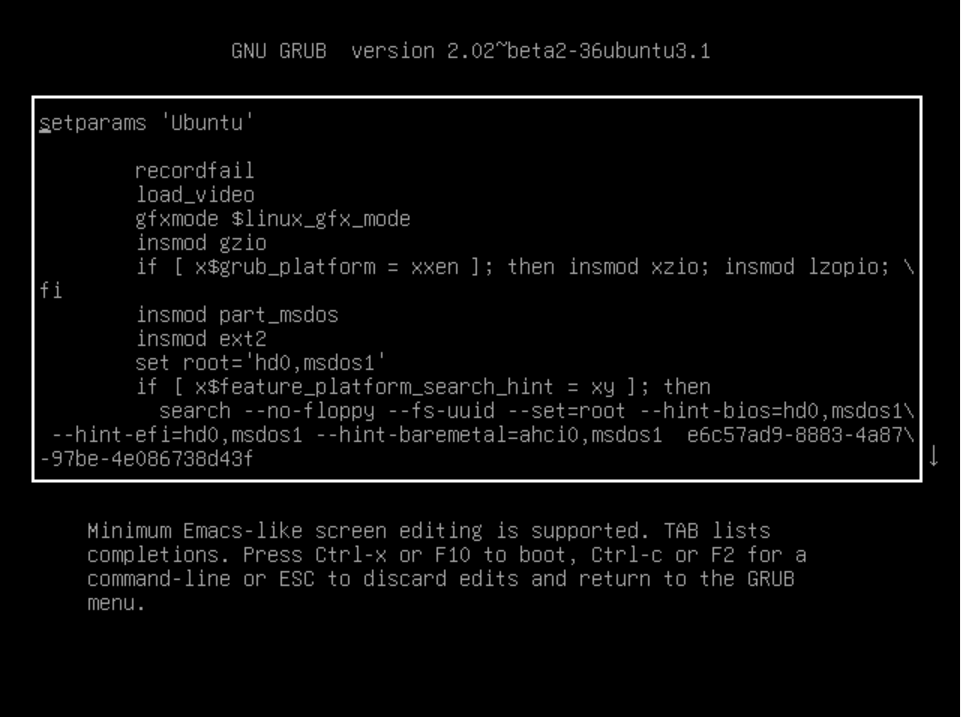
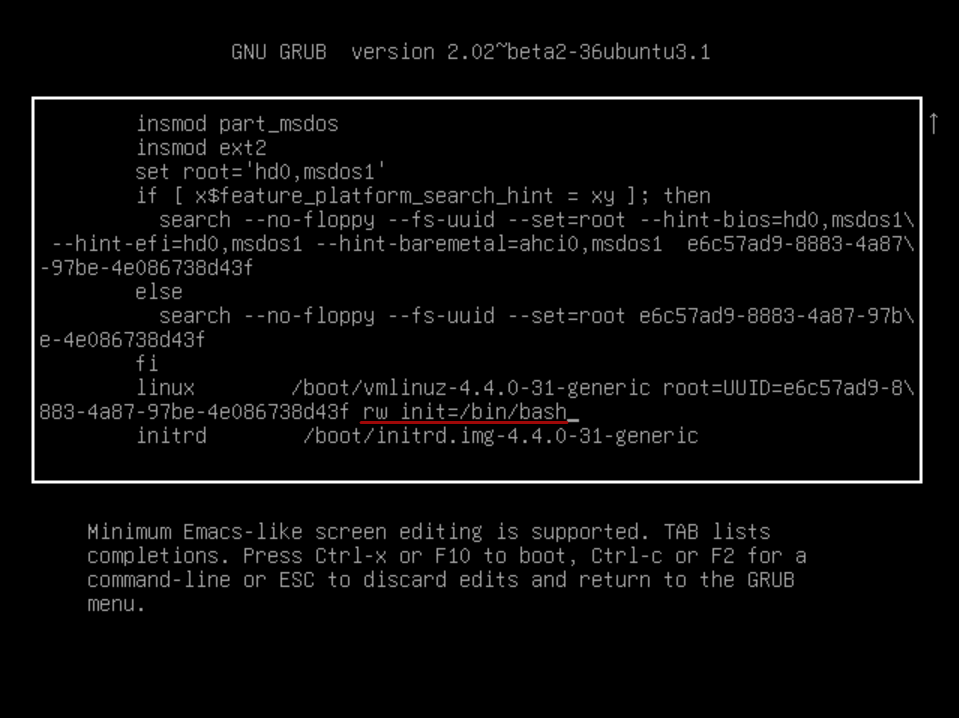
Find the line that starts with "linux /boot ". At the end of the line, change the "ro" parameter to "rw", add the parameter "init=/bin/bash" after a space. Now everything is ready to start the system in the single-user mode. Press "CTRL+X" or "F10" to start the system.
As a result, you get a console where you should run the command:
Command: passwd root
Enter the new root password twice.
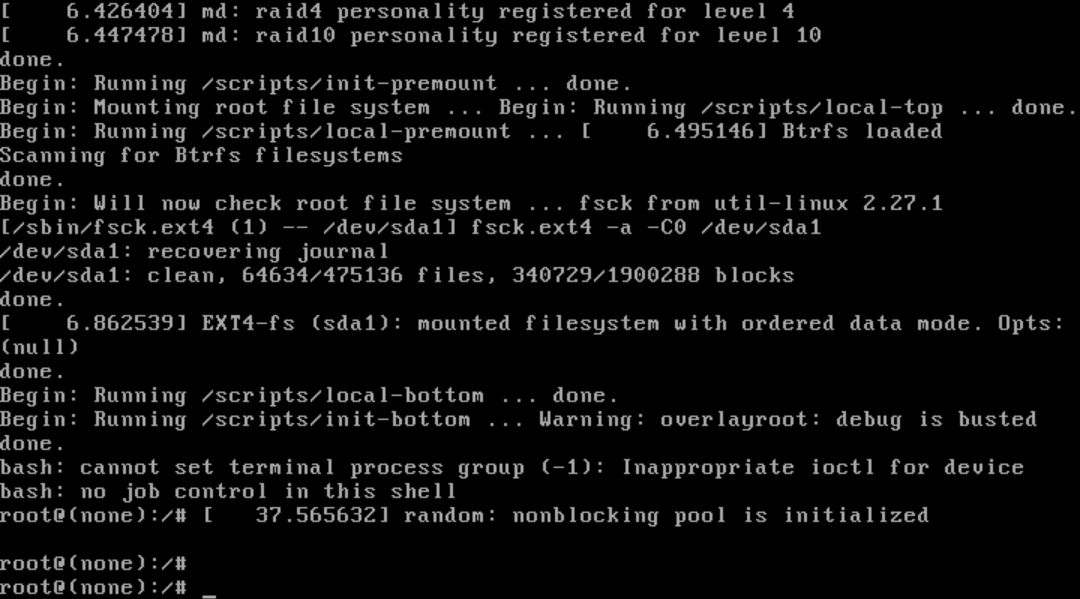
The root password is now changed. Save the changes and restart.
command: sync
command:reboot –f
All done. Now, you should be able to enter into the new server with the new password you set.
That's it.
Credit (Thanks): https://www.servers.com/